This summer my fiancé gave me a flight experience for my birthday. It was an amazing surprise and I loved it, but it left me wanting more. I didn’t necessarily want to go through proper flight training and get a licence, but I wanted to know the ins and outs of flying a plane well enough to know what to do if I ever had to fly the real thing.
Flight Simulators
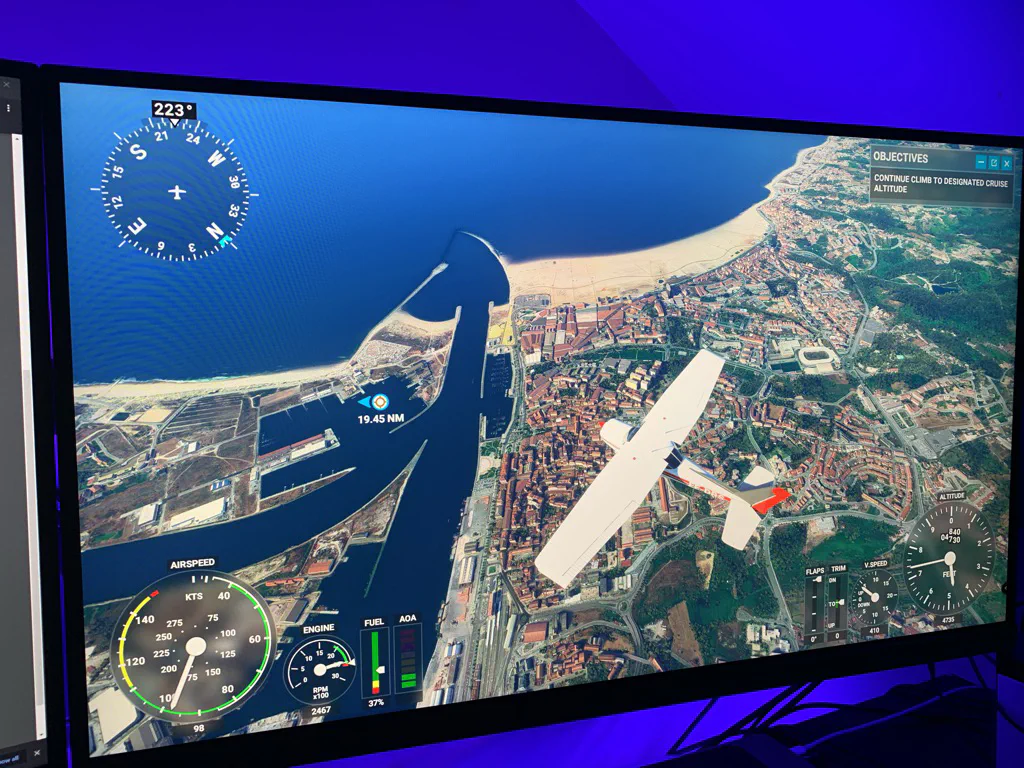
There are a bunch of flight sims out there, but for graphics, Microsoft Flight Simulator 2020 is hands down the best. I remember watching videos from E3 2019 while it was still in development and being amazed by how life-like it looked, so I went straight to Steam to check it out. It looked even better than I remembered. Using photogrammetry and Bing Maps imagery, it recreates the entire planet. The world looks incredible, and the ground has so much detail that you can fly over your hometown and recognise it from above.
PC Requirements / Build Specs
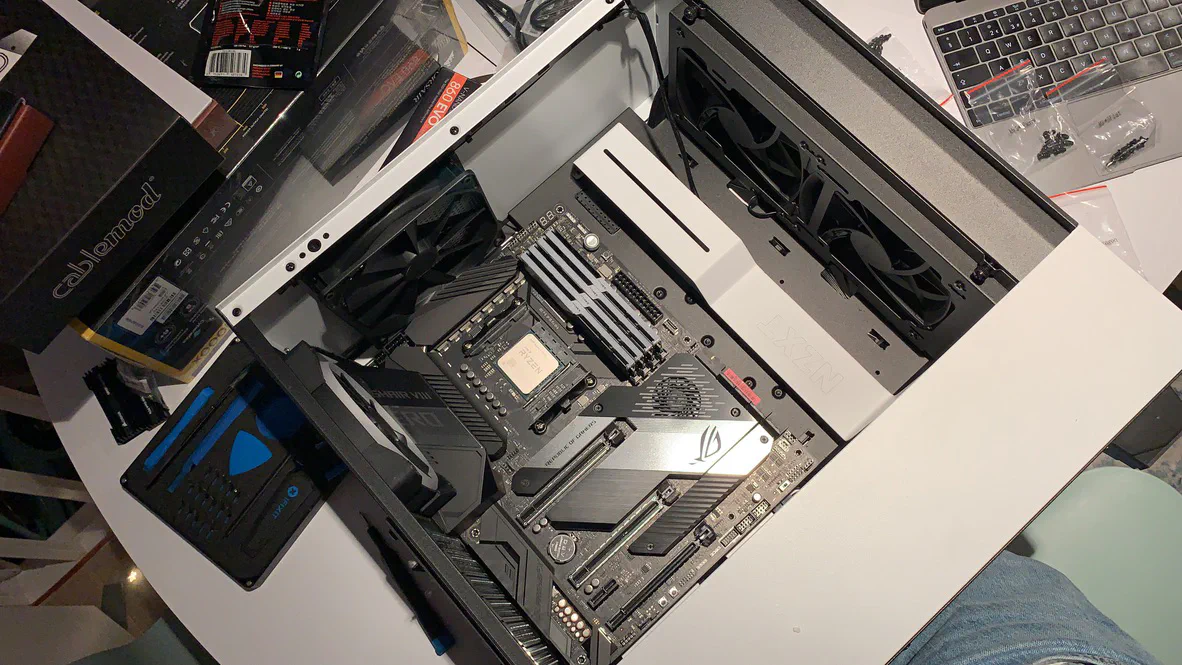
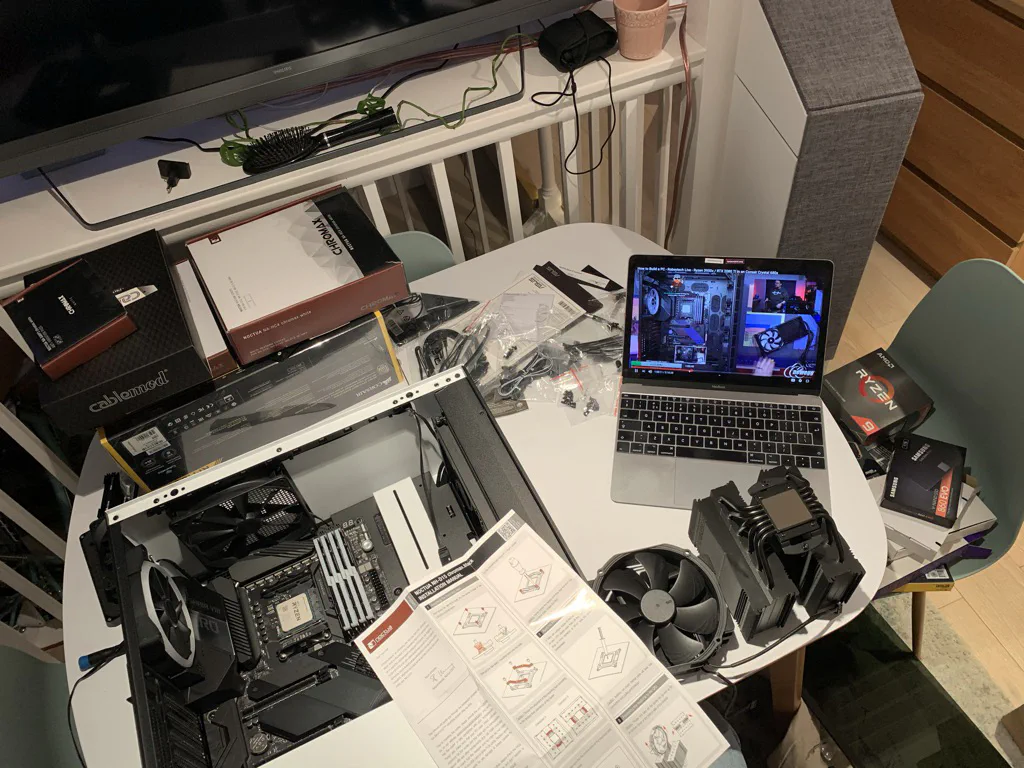
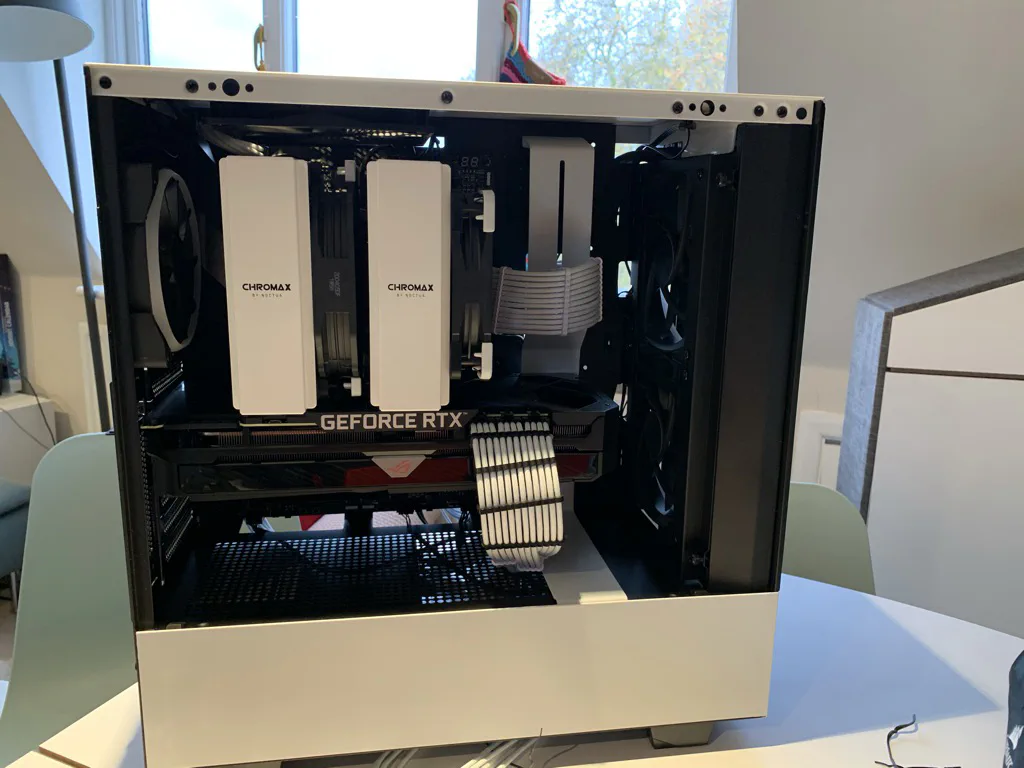
I wanted to make the most of the new engine and everything it could show. The minimum requirements were reasonable, but to run it on Ultra with everything maxed out and still get smooth frame rates, you really had to step up your hardware. So the next big step, which was quite fun, was planning a new gaming PC. I’ve been a Mac user for the last decade, and my last gaming PC had something like an Intel Celeron 266MHz, so it had been a really long time. I’d been itching to get back into gaming (until then I was only playing on my Nintendo Switch), so I went all out. After a lot of research, lurking on r/pcmasterrace for way too long, and endless hours of Gamers Nexus and Hardware Unboxed on YouTube, this is the build I settled on.
Specs
- MOBO: Asus ROG X570 Crosshair VIII Hero
- CPU: AMD Ryzen 9 5950X (16-core, 4.9GHz)
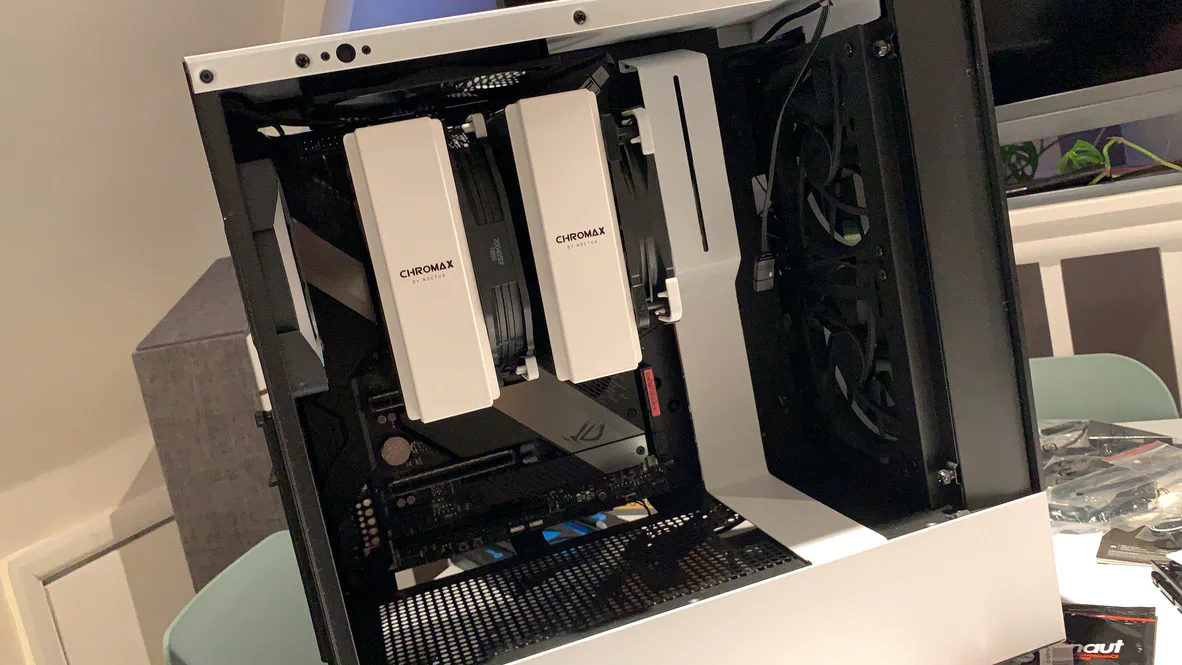
- CPU Cooler: Noctua NH-D15 Chromax Black
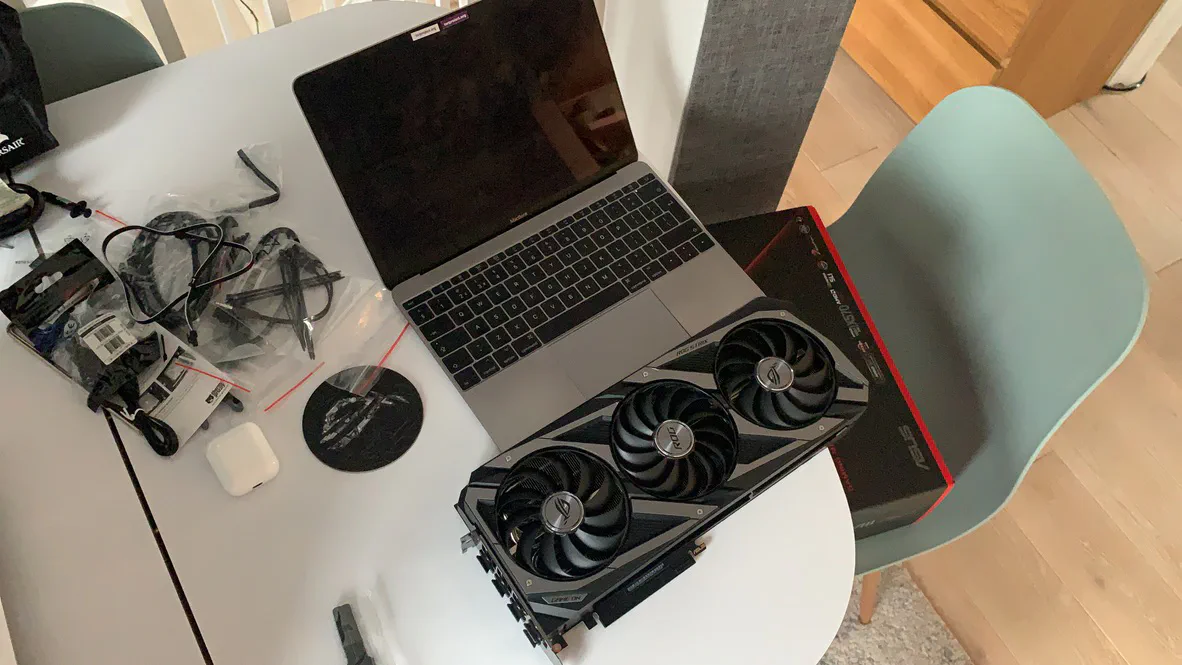
- GPU: Asus GeForce RTX 3090 24GB ROG STRIX OC
- RAM: G.Skill 64GB Trident Z NEO 3600MHz
- DISK: Corsair MP600 Force Series 1TB NVME 2.0 x2
- STORAGE: Samsung 860 Evo 1TB
- PSU: Corsair RMx Series RM1000X
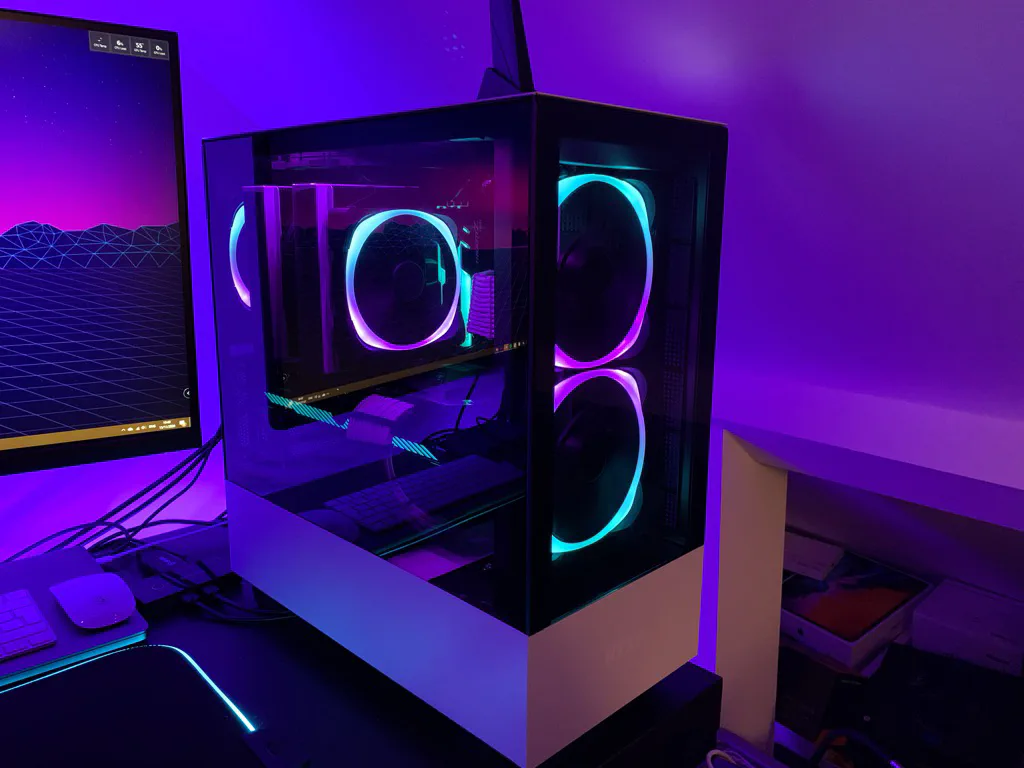
- CASE: NZXT White H510 Elite
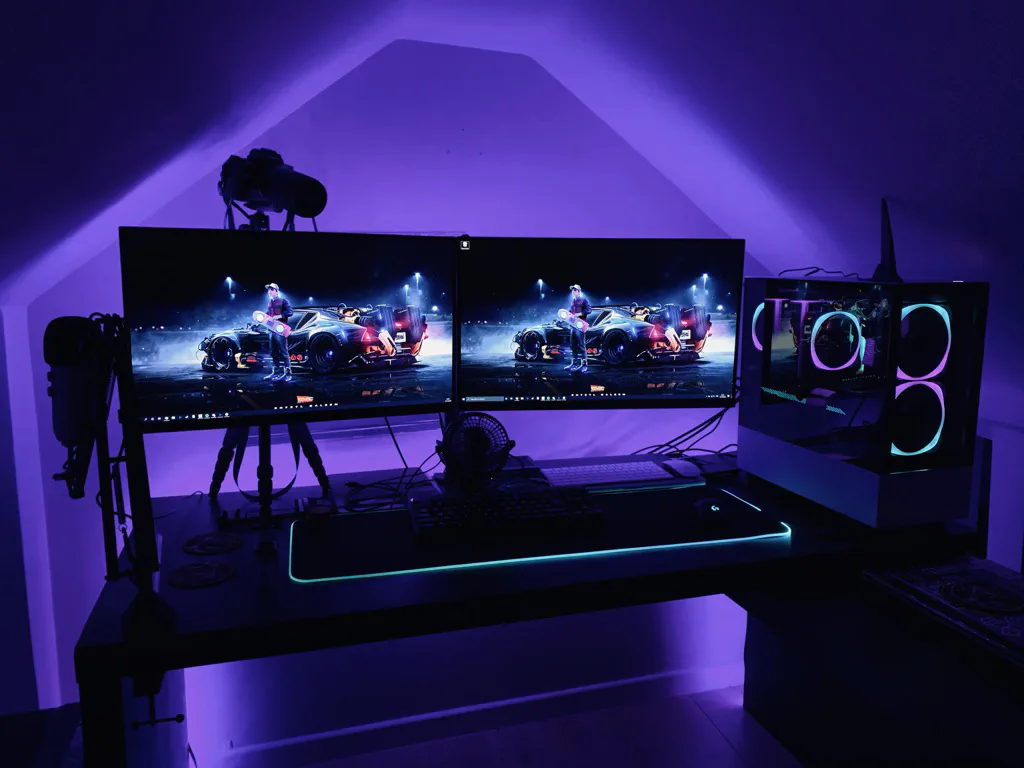
- DISPLAY: Asus TUF Gaming VG27AQL1A 27" 170Hz Refresh Rate x2
Build Pictures
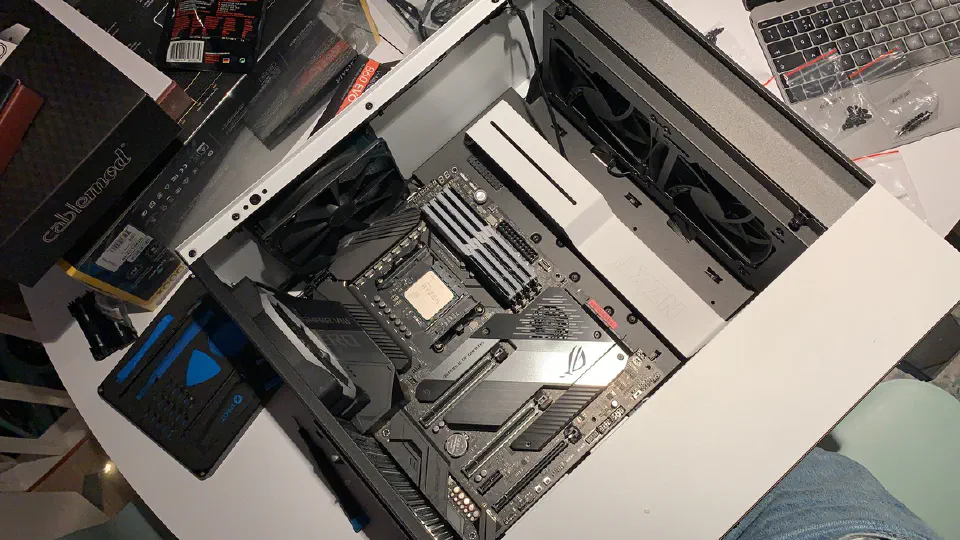
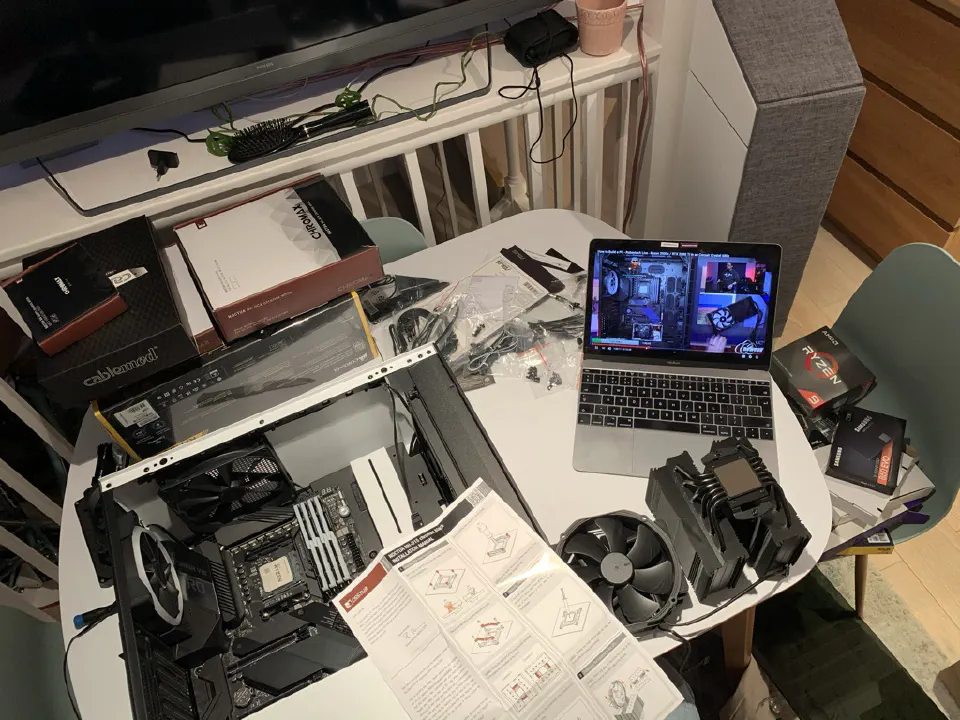
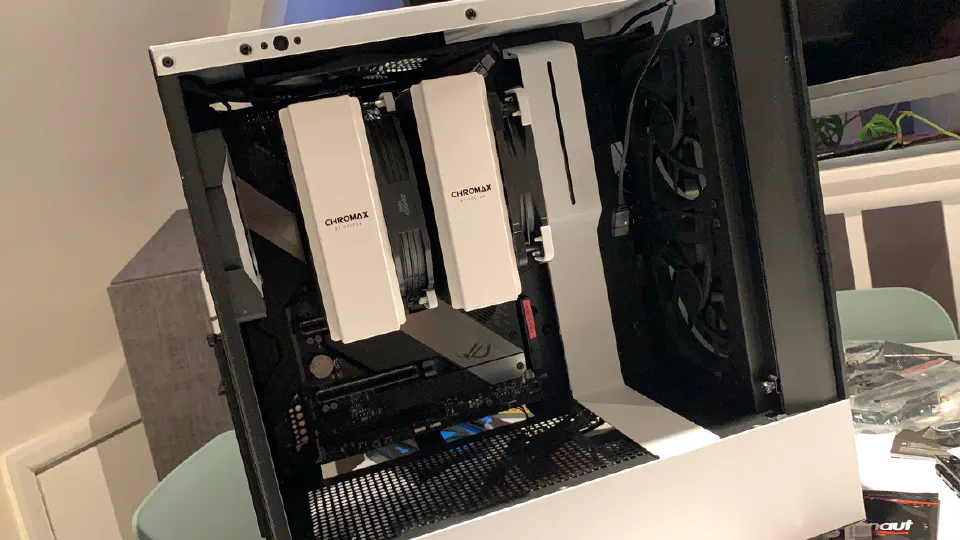
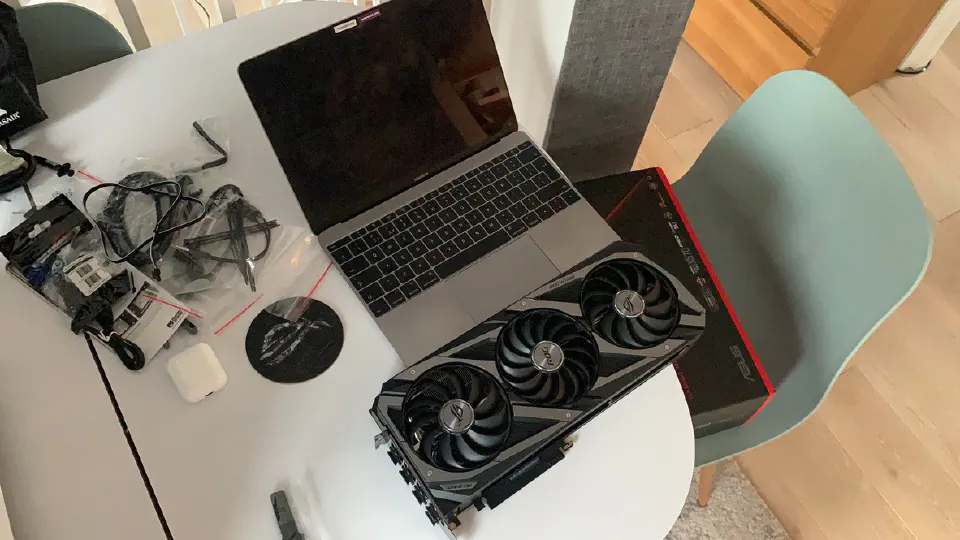
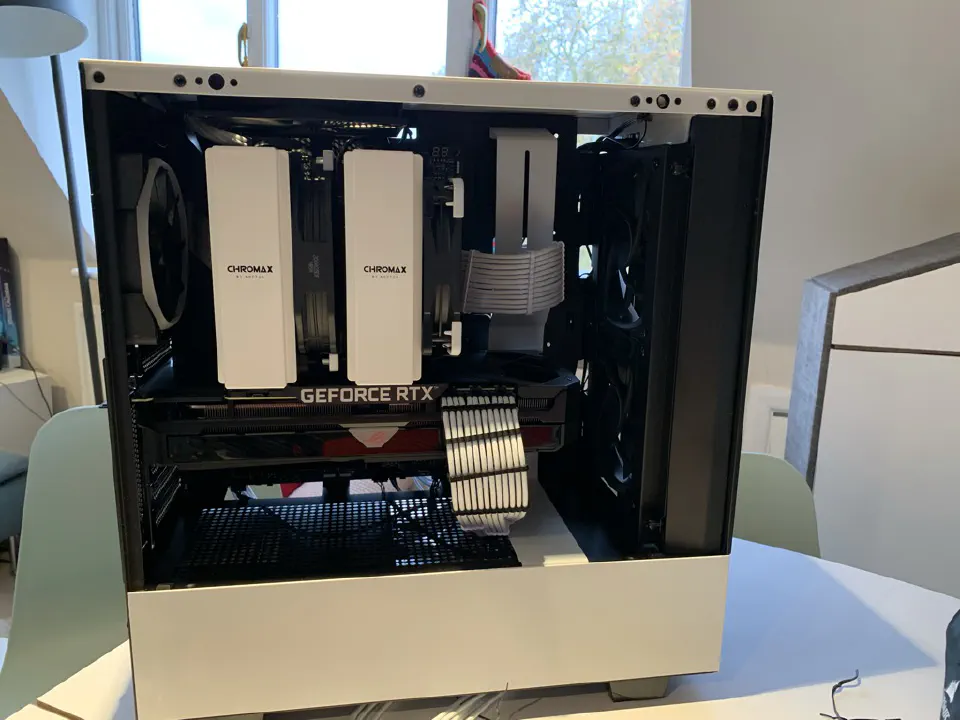
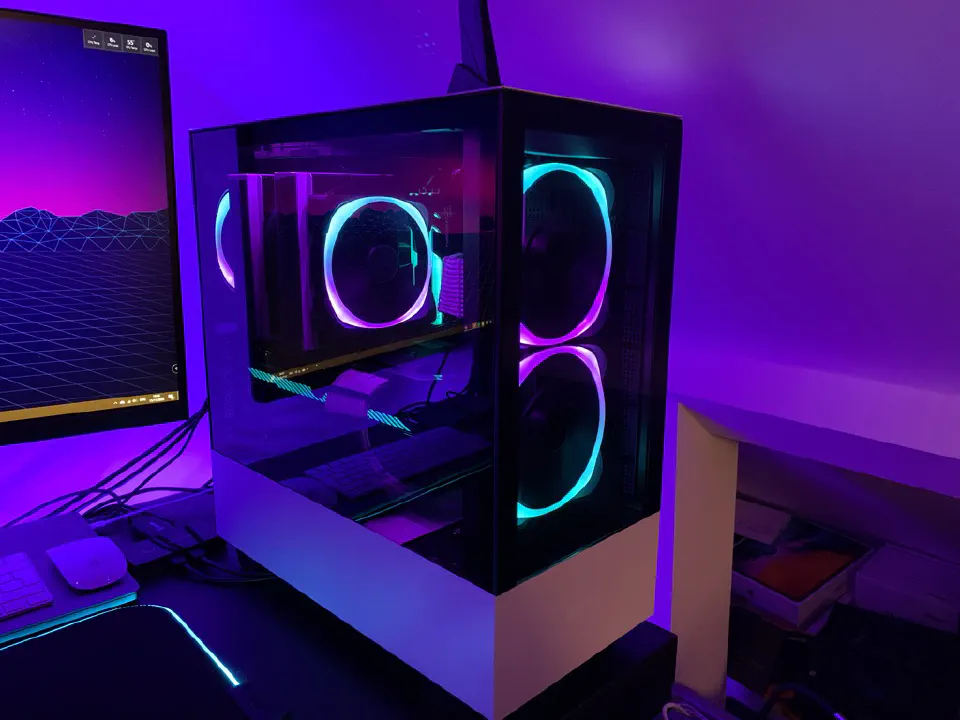
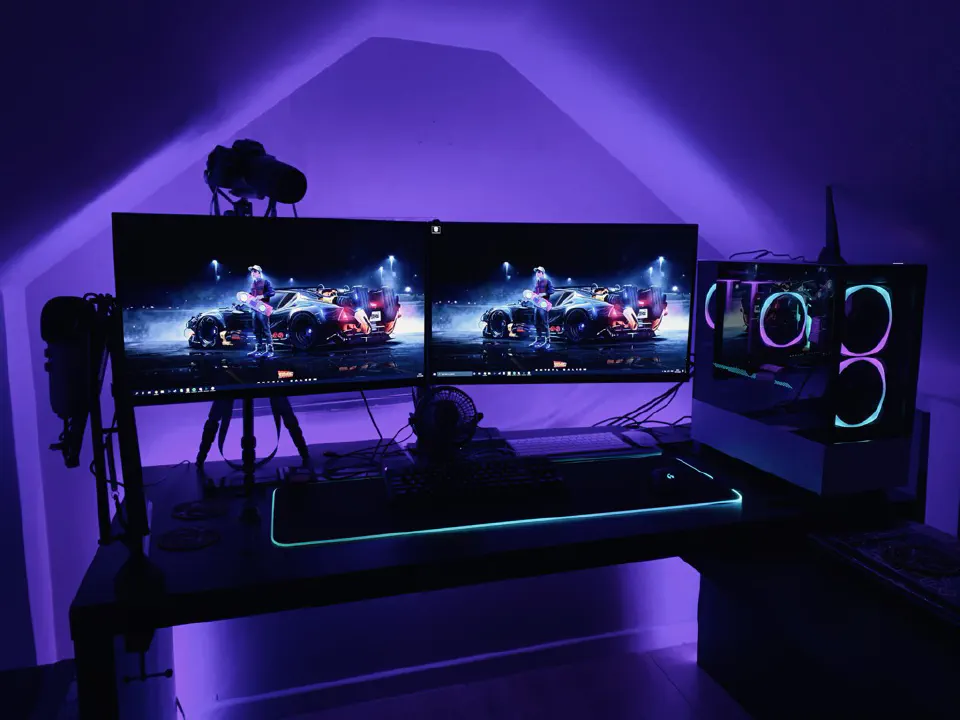
Microsoft Flight Simulator 2020
After a massive download and update (90GB+), I finally launched the game and went straight to Flight Training to learn the basics. I didn’t want to fly with just a mouse and keyboard, so I got a cheap Xbox controller for smoother movements, but even then, Flight Training was a bit disappointing. It showed you the basics, but the lessons were short and you had to do things on the go while listening to your instructor, which was quite demanding. It was easy to get overwhelmed. Flight Training had 8 lessons:
- Basic Controls & Cameras
- Attitudes & Instruments
- Take-off & Level Flight
- Landing
- Traffic Pattern
- First Solo Flight
- Navigation
- First Solo Navigation
None of them went into much detail. I was expecting to be taught all the basics and what to do at every step, but that wasn’t the case. The whole thing felt a bit arcadey, though I think proper training inside a game would be too much. There are add-ons you can buy that go further, and Microsoft and Asobo have since updated Flight Training, so it’s a bit better now.
Once I knew how to start the plane and take off, I spent a few weeks just cruising around places I knew, like my hometown and the dropzones I used to skydive from. I was amazed by the detail you could see from the sky. It really looked like the real thing, and the satellite imagery was spot on.
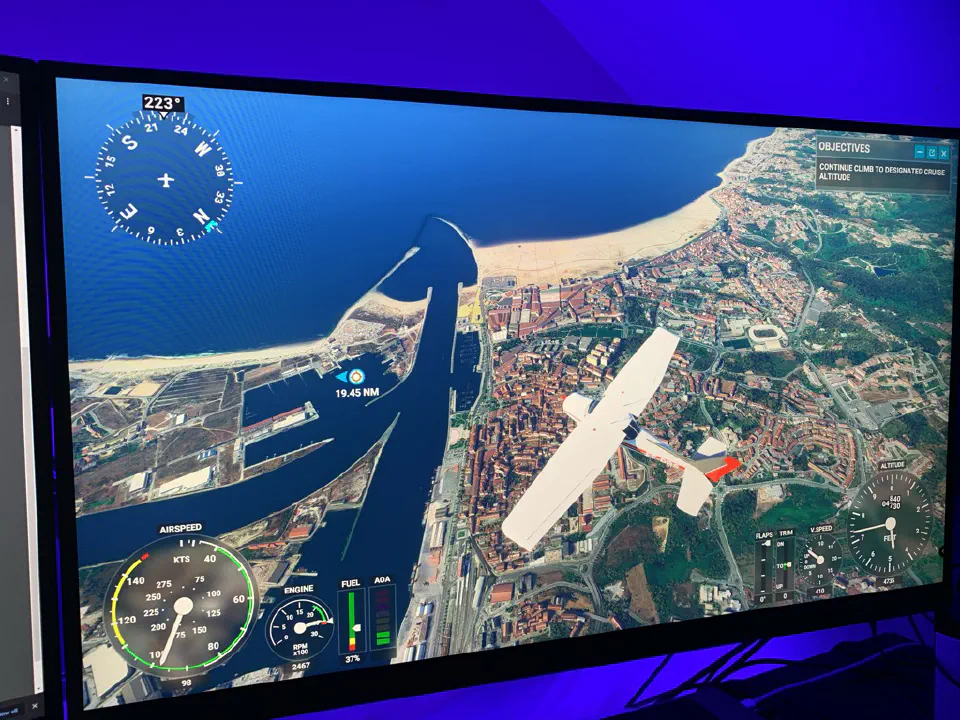
Flight Experience
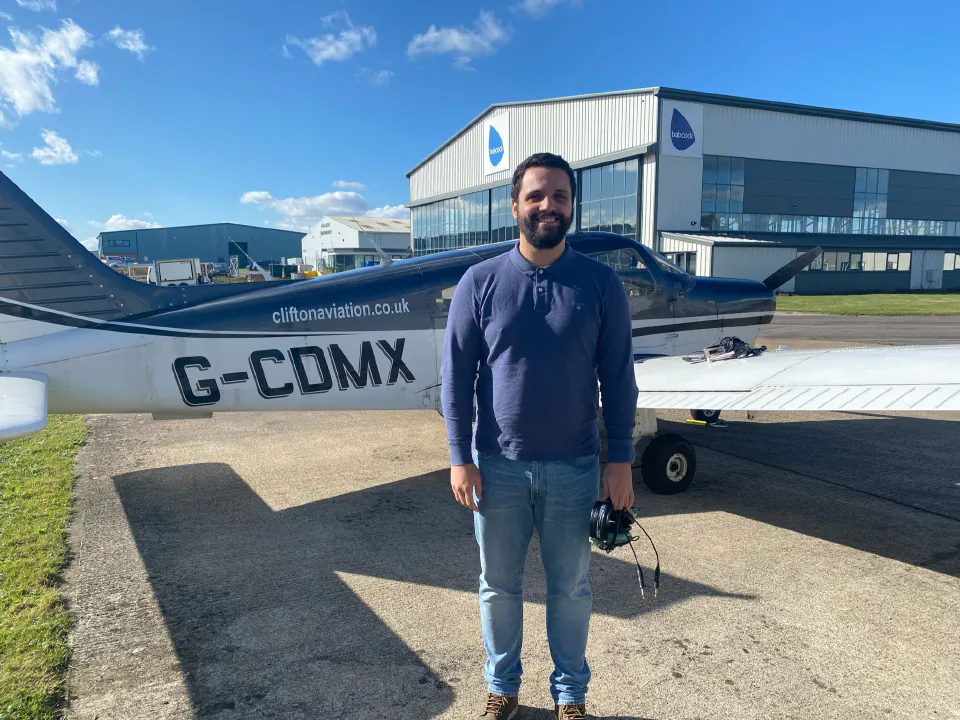
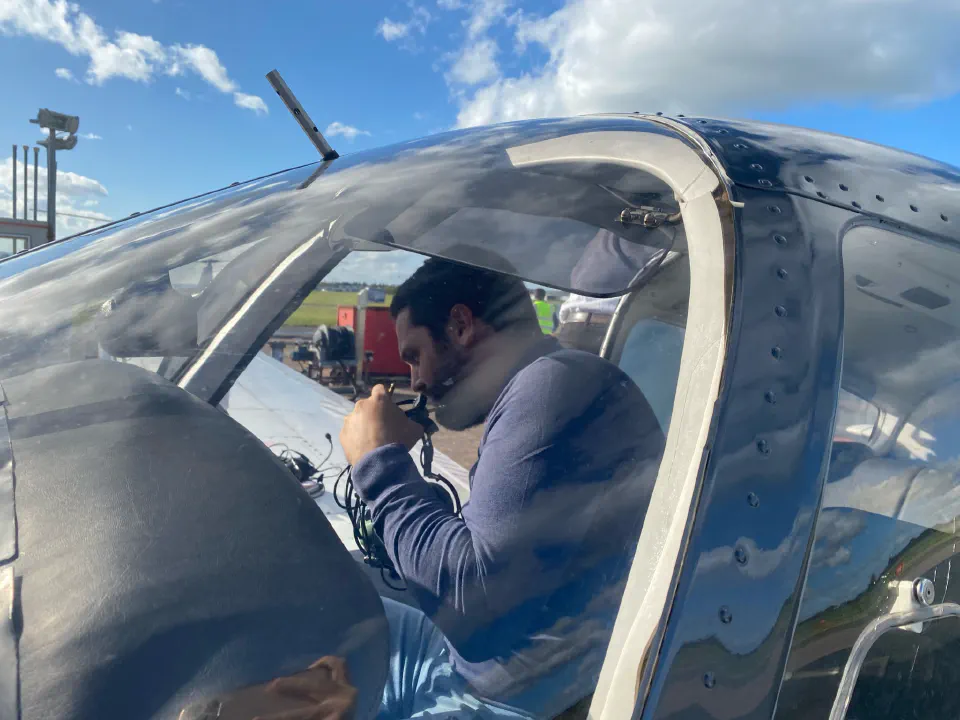
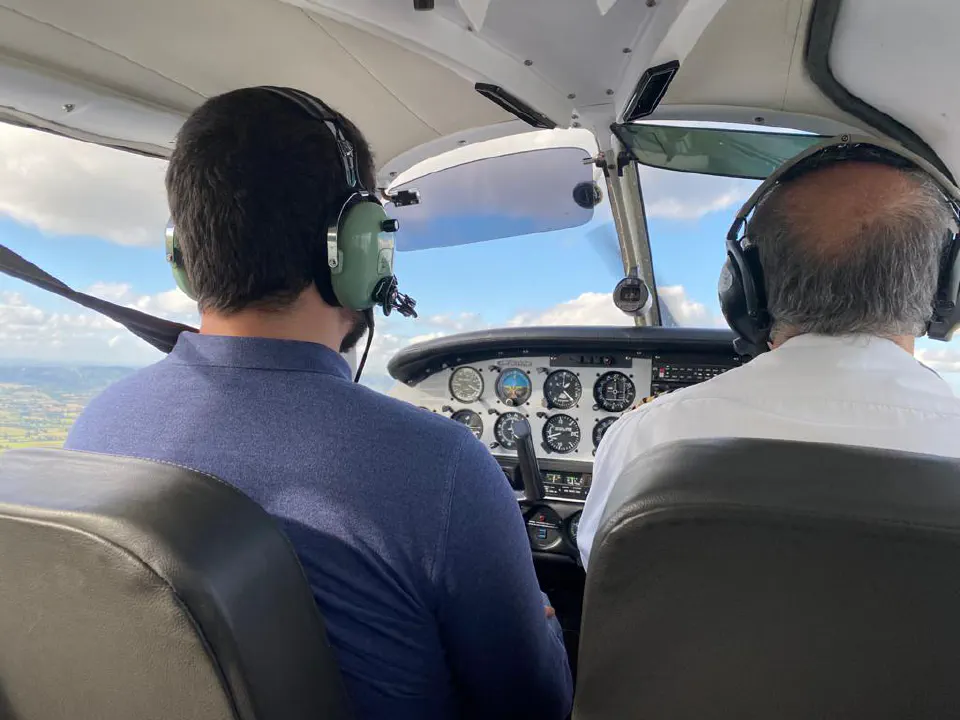
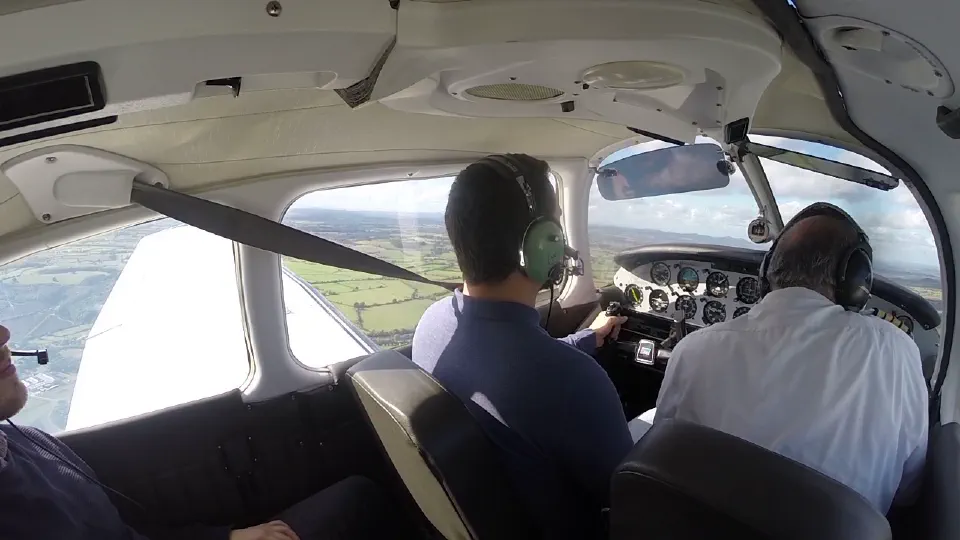
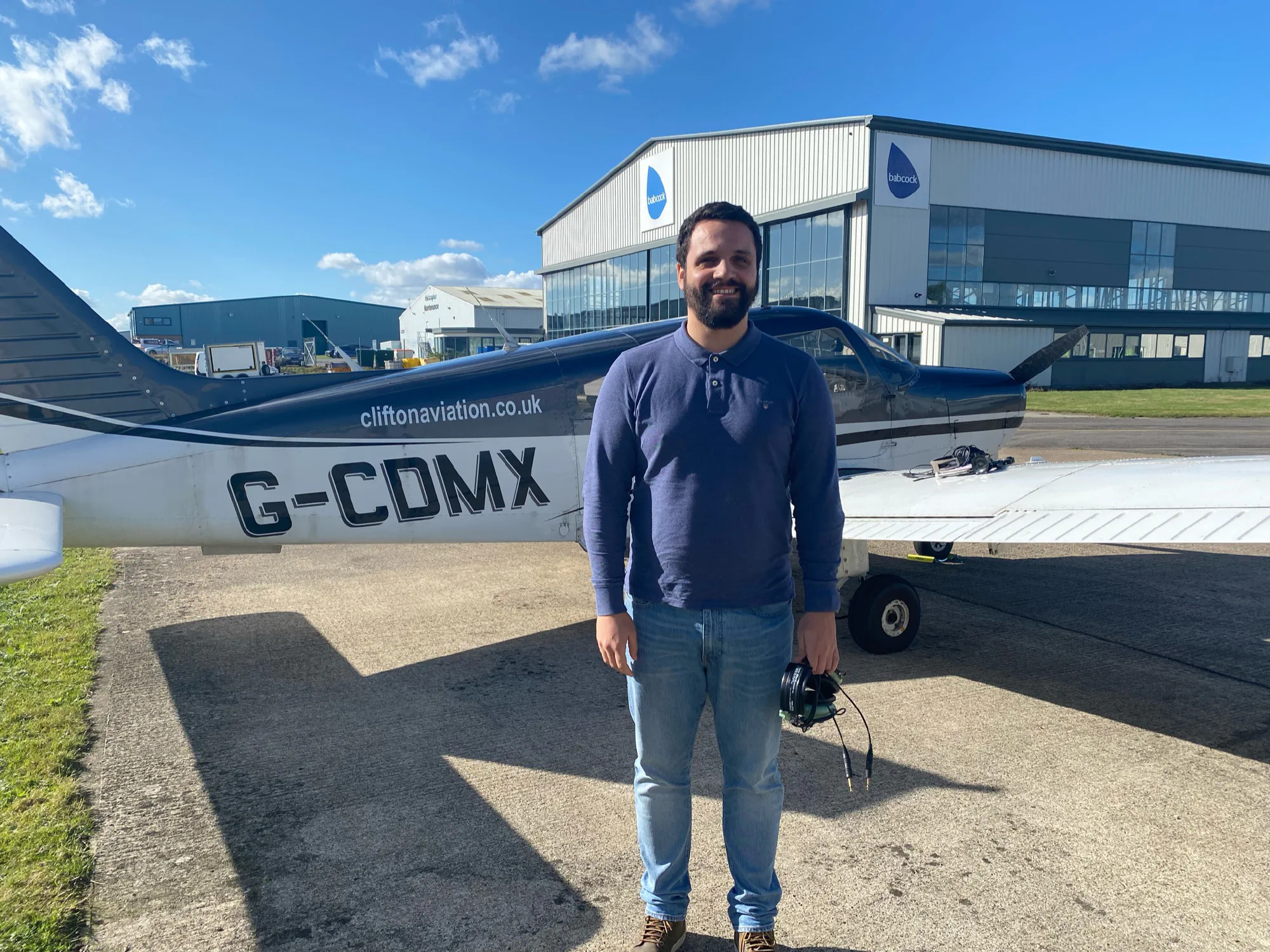
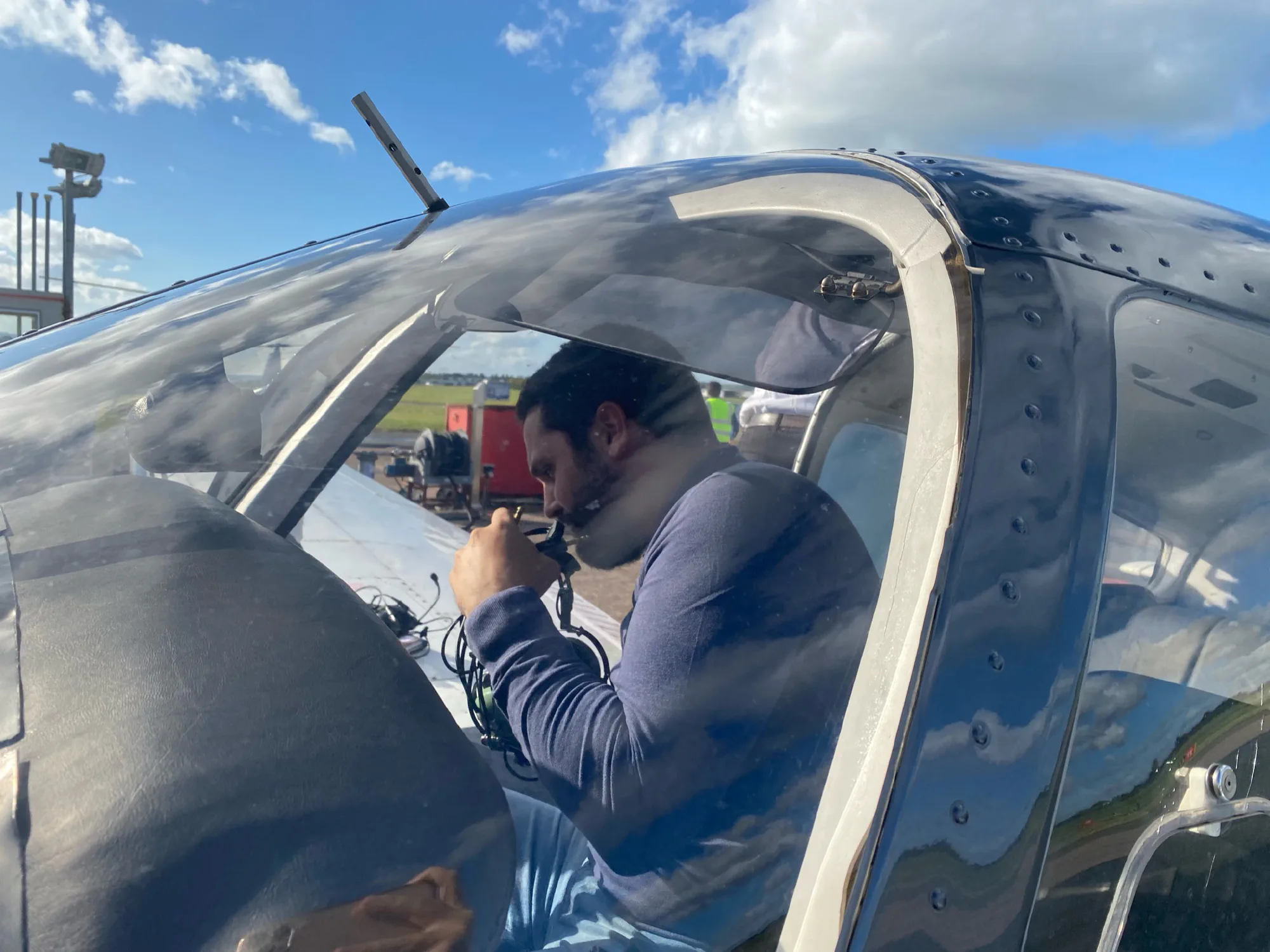
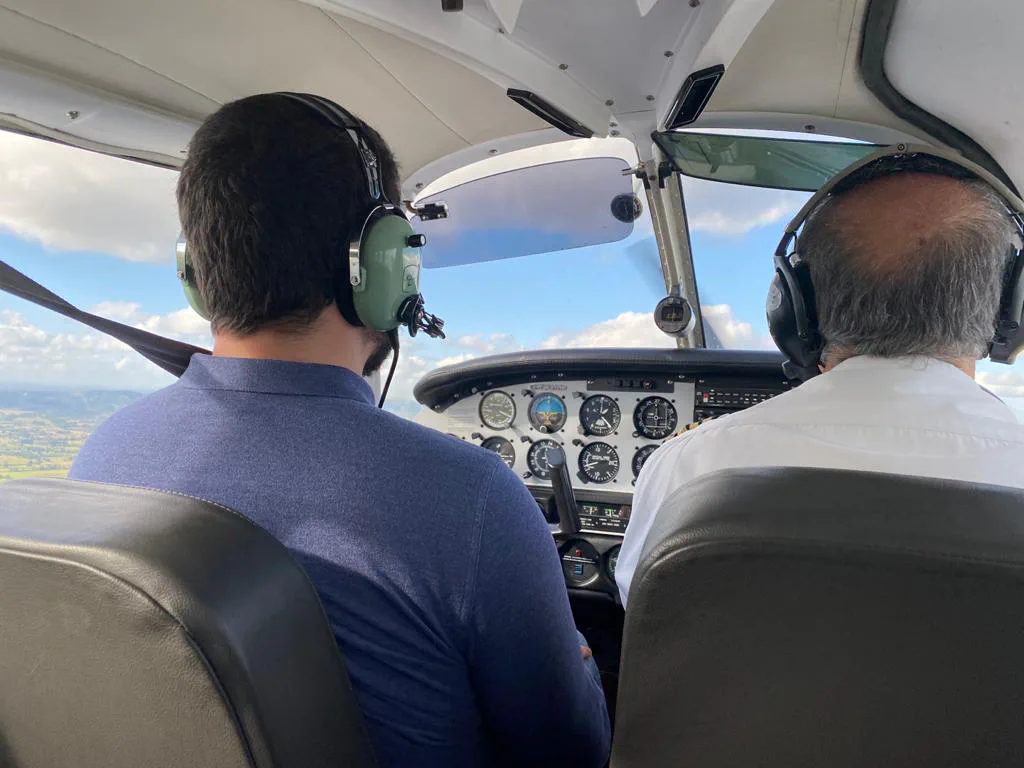
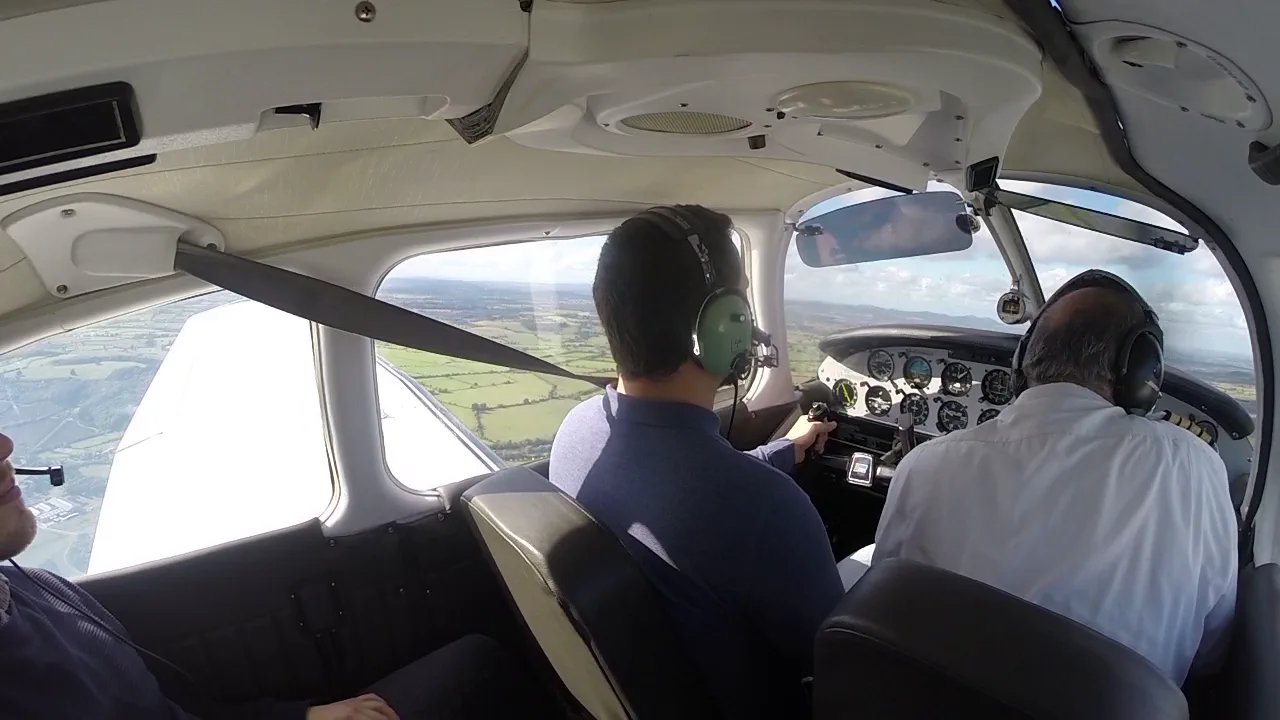
For my birthday, my fiancé (having watched me play the game for hours) gave me a Virgin Experience Day: a real flight lesson! Best present ever, I must say. It included ground school and a technical briefing, and two 30-minute flights, one as the pilot and one as an observer. I booked it with Clifton Aviation at Gloucestershire Airport (EGBJ / GLO), near Cheltenham, in a Piper Warrior (PA28-161) registered G-CDMX. The instructor gave me the controls after take-off, and flying the plane was a lot easier than I expected. I flew around the airfield at about 1,400ft, following his instructions all the way out and back until we lined up for landing, and he took back control on final approach. It was a really fun experience, and I loved watching him go through the checklist to start the plane. My next goal in Flight Simulator was to learn the Piper Warrior’s checklists and fly the same route I’d just done.
PA-28-161 Warrior II
Microsoft Flight Simulator didn’t come with a Piper Warrior, so I searched around and found a third-party add-on for it by Just Flight.
The add-on was incredible. The plane looked amazing, with lots of cool liveries, including one from a flight school here in the UK. The sounds were spot on from what I remembered, and the interior was exactly the same. The cockpit even showed some real wear and tear, which made it feel more real. It also came with an in-game checklist that follows real-life procedures, a choice of navigation systems, and a really detailed Operations Manual for the plane.
I spent the next couple of days learning the Piper’s checklists, starting it up and flying the same route as on the experience day. It was a lot of fun, but I knew that flying the plane in the game didn’t mean I could fly it safely in real life. I had a lot more to learn than the checklists, but I was motivated and having a blast, so I decided to upgrade my setup with some flight controls. That way I could learn to do things properly and get a bit more realism.
Controllers
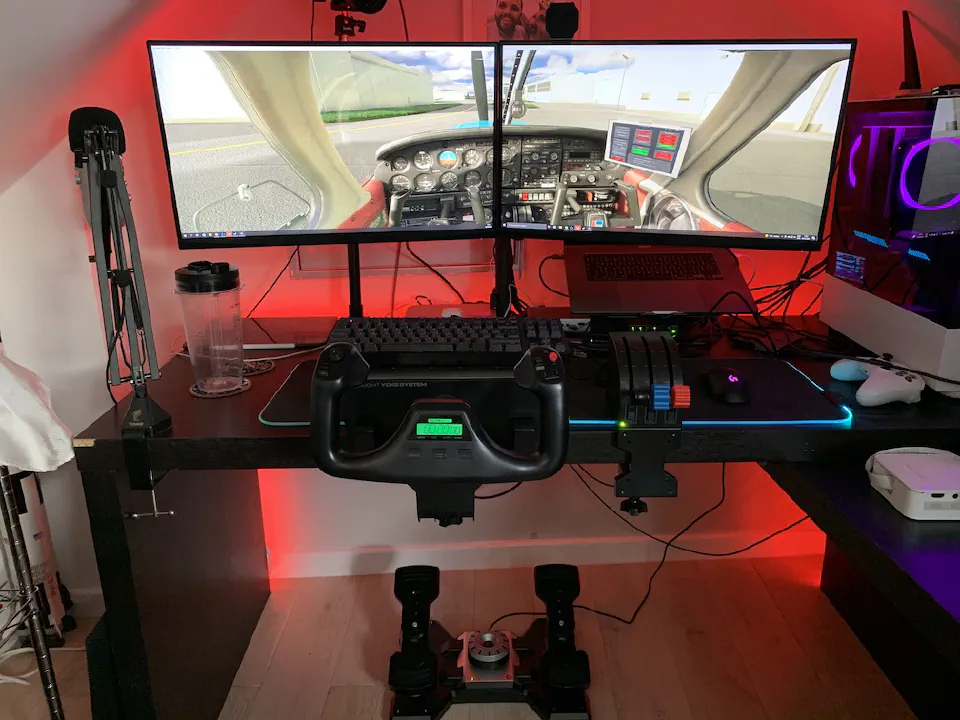
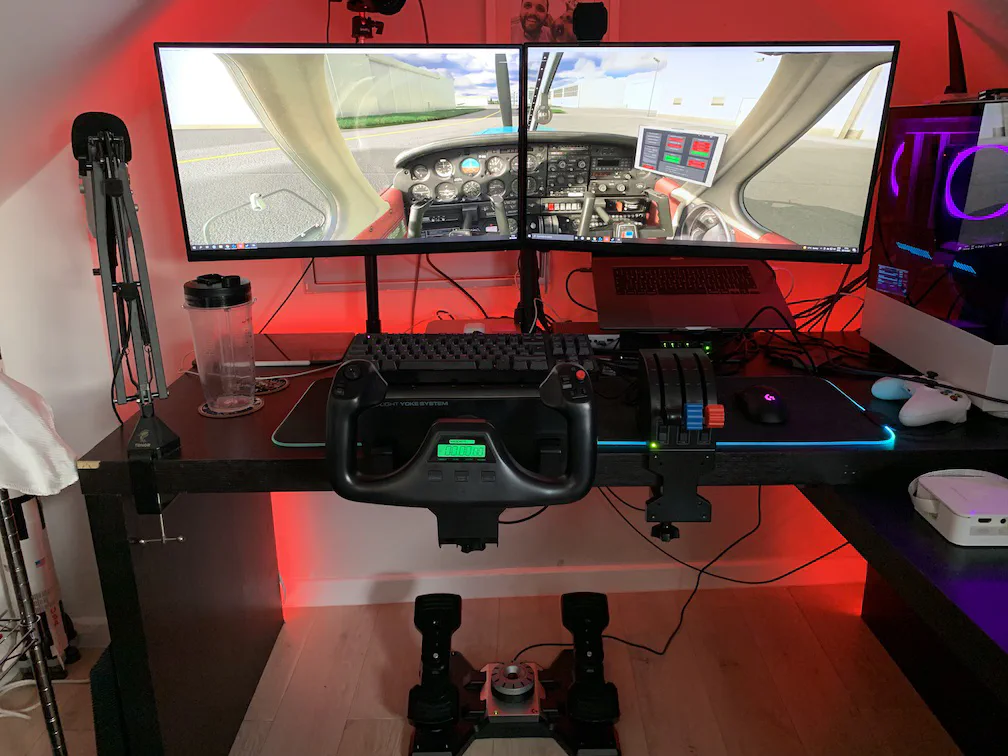
When I bought the peripherals for my computer, I went with a Logitech keyboard, mouse and headset, and while browsing their website I remember seeing flight simulation controls. Logitech had bought Saitek, a well-known brand of simulation controllers, and was selling them under its own name. The reviews online were okay, and they seemed good value for money, at least as a way in, so I went with the basics.
Flight Sim Controllers
- Yoke: Logitech G Saitek PRO Flight Yoke System
- Throttle: Logitech G Saitek PRO Flight Throttle Quadrant
- Rudder: Logitech G Saitek PRO Flight Rudder Pedals
I’d just say these are not PRO at all. I was quite disappointed when they arrived: cheap plastic everywhere, they feel flimsy, and the controls themselves aren’t great. They’re better than a joystick or a game controller, but I expected more. Still, simulation controls are a niche thing and the good ones are really expensive, so for the money, these are good enough.
Issues and Mods
The rudder pedals and the throttle quadrant were pretty good, but the yoke had some serious issues with dead zones, and the pitch axis would stick with friction whenever there was some roll applied. Calibrating it in Windows and in Logitech’s software helped a bit, but it was still annoying, because the problem was really in the hardware. So I voided the warranty and did a couple of community mods that solved all of it. I don’t have pictures of them, but I followed these videos and it was pretty straightforward.
Rubber Band Mod
Leo Bodnar Mod
Flight School
With the new setup, I wanted to take some time to learn to fly properly, which meant learning all the checklists and procedures. Until then I’d been flying the Piper Warrior, but I switched to the Cessna 152, because I found an amazing YouTube channel (which I still follow) that explains everything in great detail.
Learning Sequence
- Sim setup
- Aircraft instruments and systems
- Basic aircraft components
- Normal Takeoff and the four basics of flight
- Steep Turns
- Slow flight and flight at approach speeds
- Stall recognition and recovery
- Airport environment
- Landing
- Traffic patterns
- Ground operations
- VFR - Aeronautical charts
- VFR - Flight planning and pilotage
- VFR - Dead reckoning
Cessna 152 Checklists
From the videos, I put together this short reference guide, Cessna 152 - Checklists, which covers:
- Before Start
- After Start
- Engine Run-Up
- Normal Takeoff
- Short Field Takeoff
- Cruise
- Approach
- After Landing
- Shutting Down
- Grass Takeoff - No Obstacles
- Grass Landing - No Obstacles
- Grass Takeoff - Obstacles
- Grass Landing - Obstacles
Upgrading the Setup (Once Again)
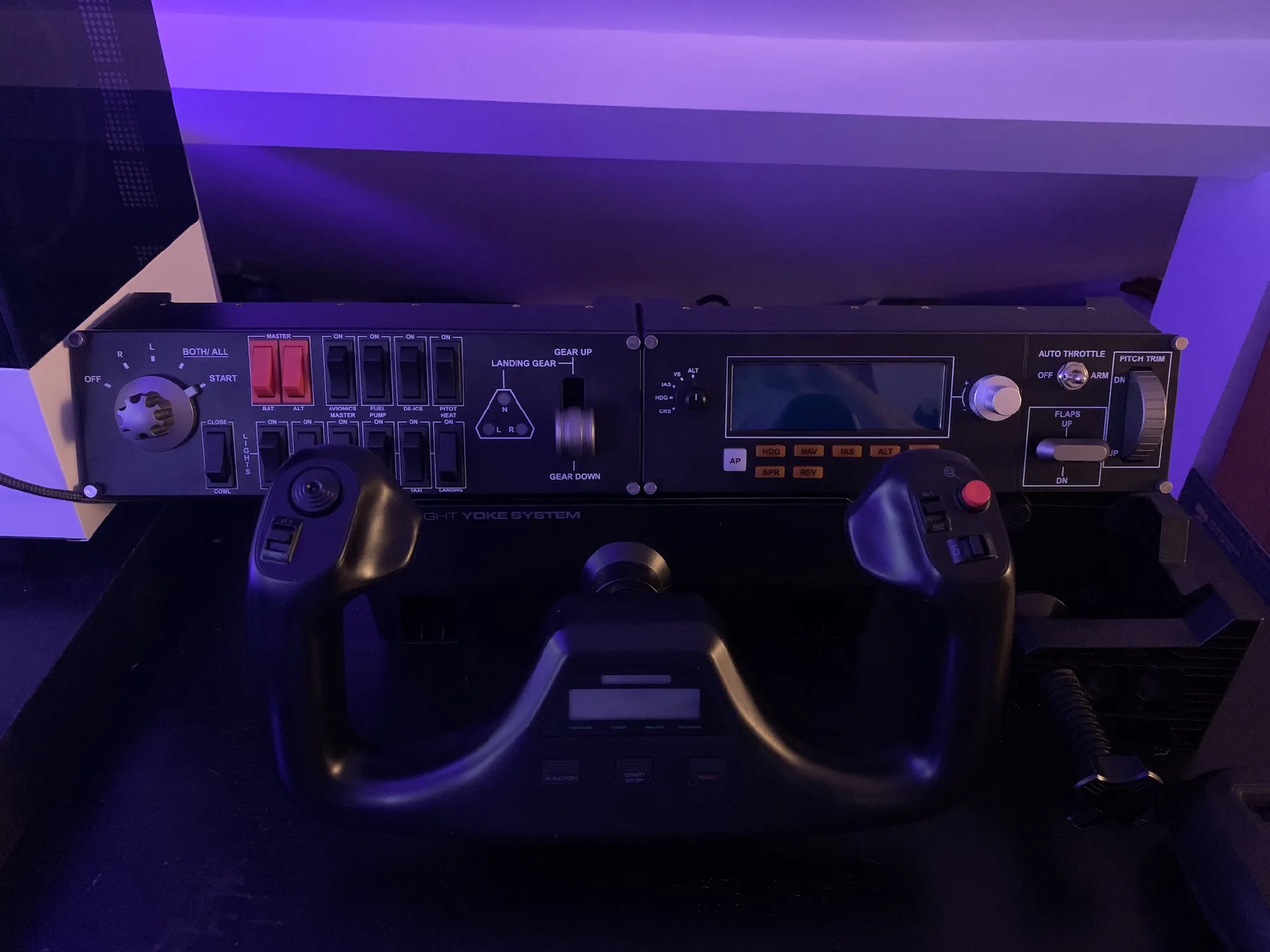
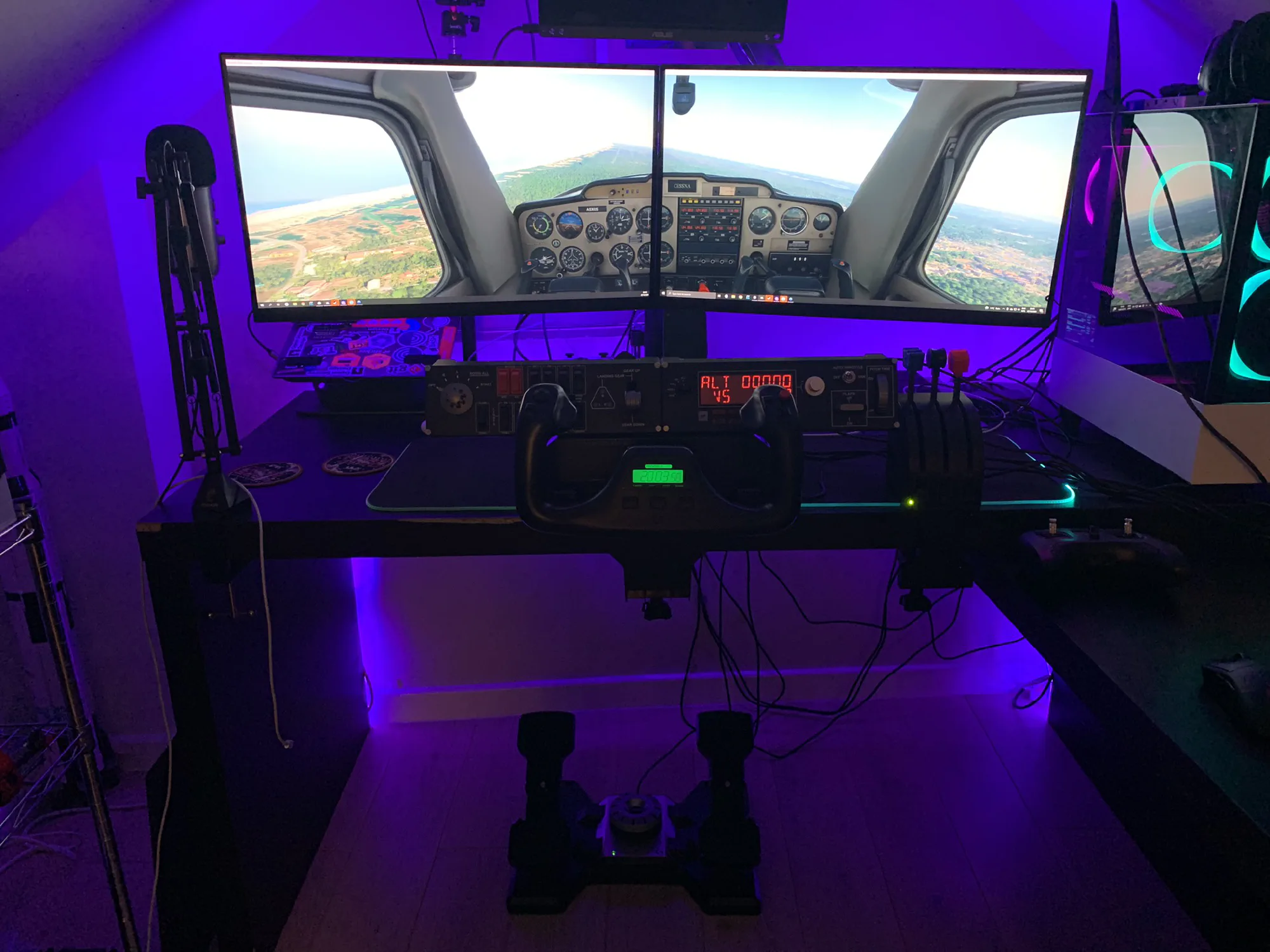
The setup was great, but some small things could be better, especially for checklists and normal flight operations. Checklists are mostly flicking a lot of buttons and switches on and off, and I was doing all that with the mouse and keyboard and a few buttons on the new controls, which wasn’t very realistic. So I got some flight panels from Logitech, which made it more immersive and got me one step closer to the real thing.
New Panels
- Logitech - Flight Switch Panel
- Logitech - Flight Multi Panel
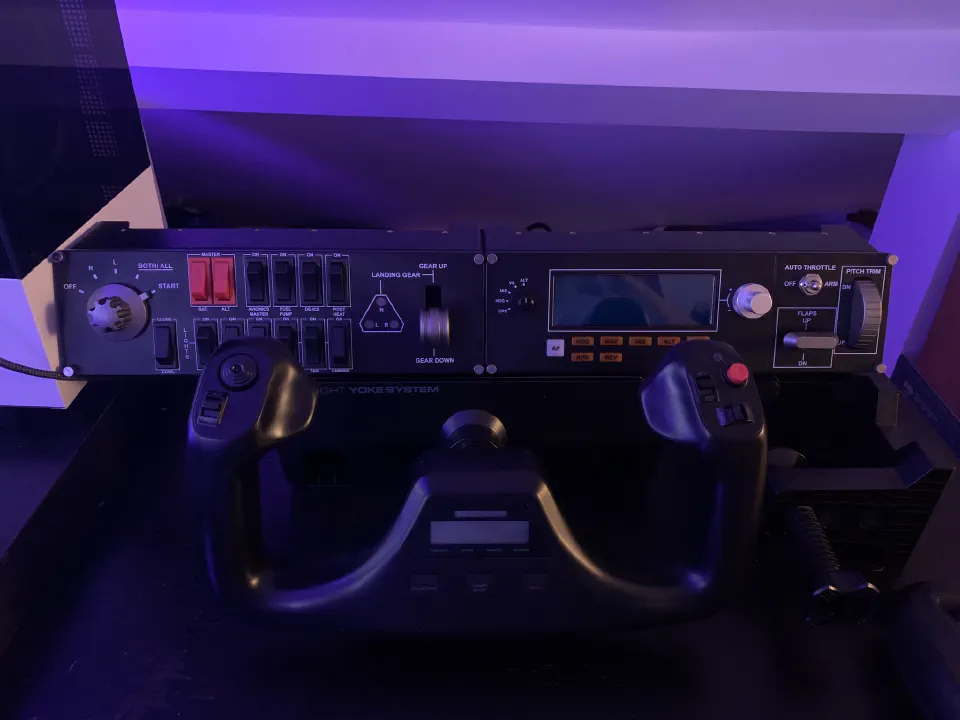
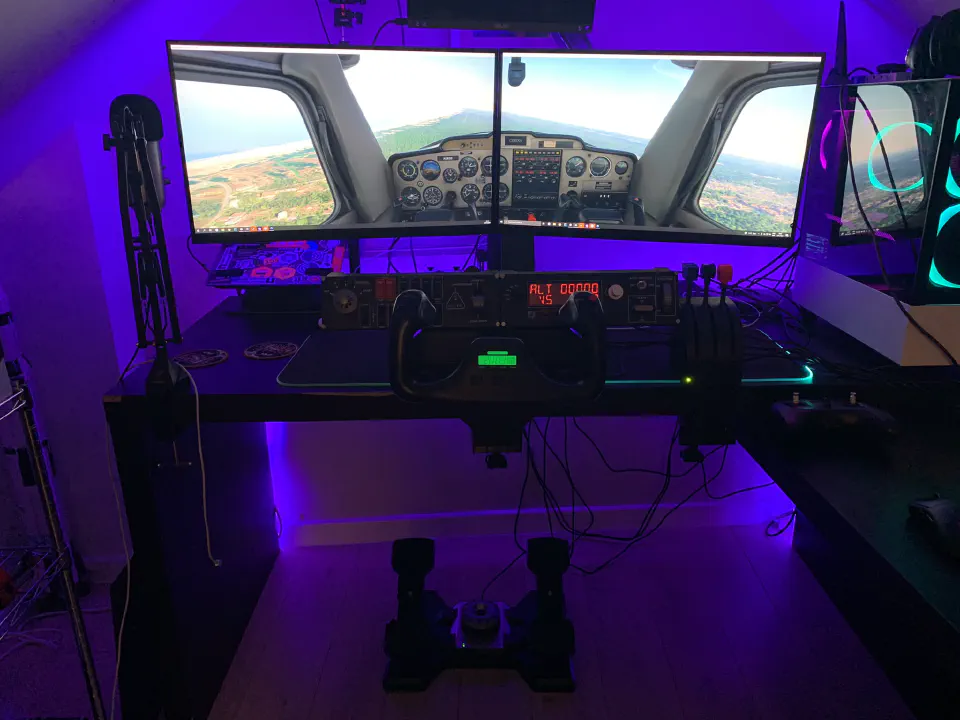
The panels are super helpful for the checklists (magnetos, lights, carb heat, battery, alternator and so on), and in flight too, with the autopilot panel, which also has the flaps and pitch trim. That one’s a godsend: trimming on the yoke was really difficult, and now it’s easy.
Portugal Cross-Country Flight
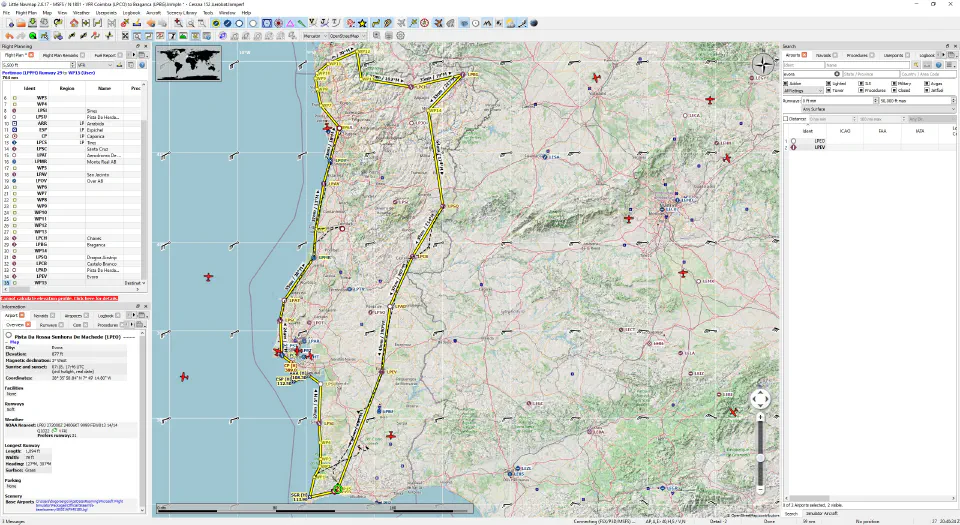
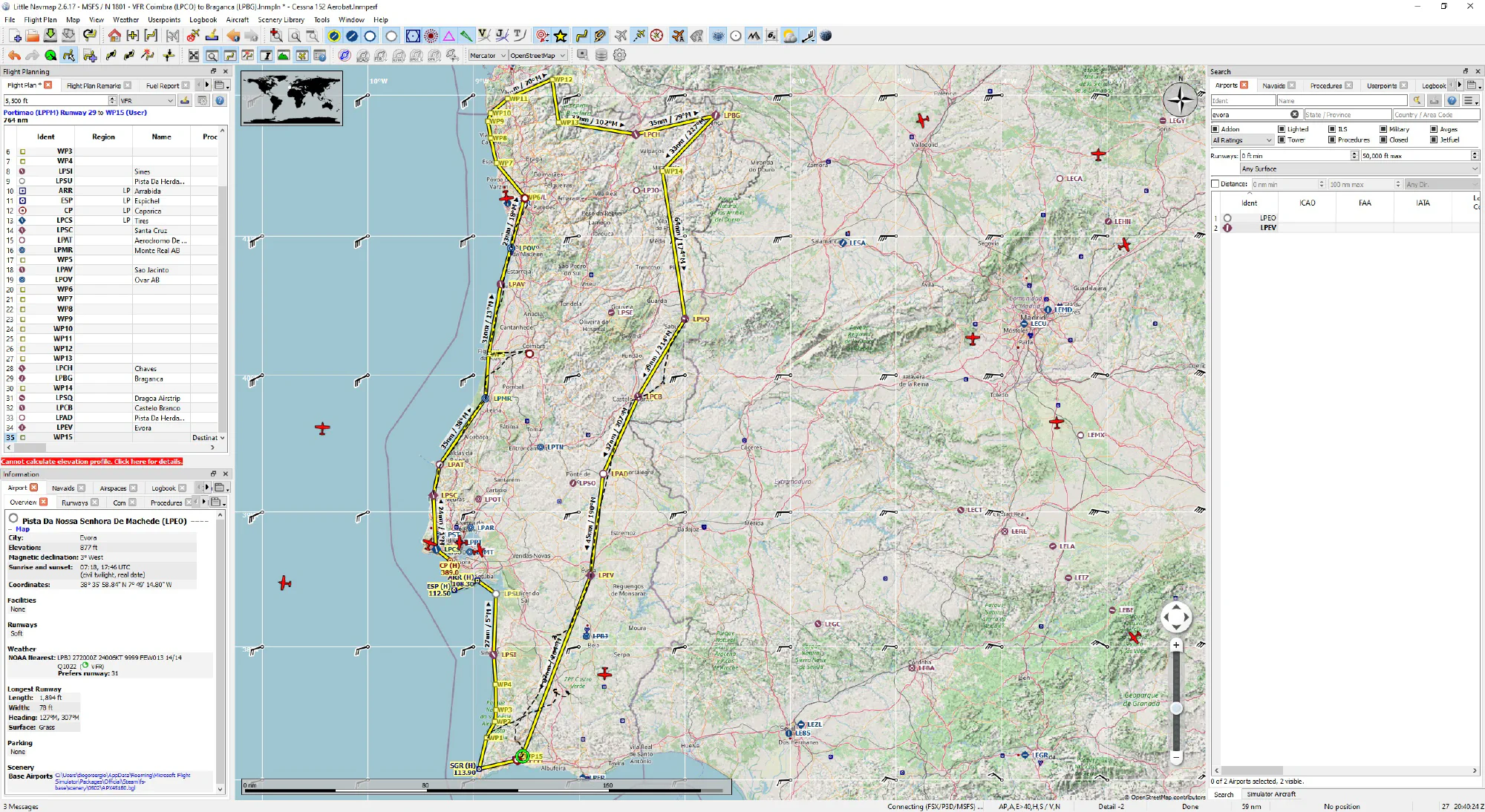
With all the training and practice, I felt ready for something more than a casual flight around the airfield, so I planned a cross-country flight around Portugal. It was quite ambitious, but I wanted to travel around my home country and see it from above. The whole trip took a week, flying an hour or two a day after work, and I found myself taking a few detours to explore. The stops worked out nicely for refuelling, resting and actually enjoying the flight.
Below is the flight plan. Towards the end I was getting a bit bored, so I took a more direct route to the last stop. The Cessna 152 isn’t fast and has no autopilot, so I had to concentrate and fly the whole time, which got a bit tiring.
Issues with the Cross-Country
The main issue was that to enjoy the view from the cockpit, I had to pan left and right with the buttons on the yoke. That worked up to a point, but it wasn’t very precise, so I wanted to sort it out. The other pain point was the slow cruise speed and having no autopilot in the 152. There were times it would have been nice to just turn on the autopilot, relax and enjoy the view.
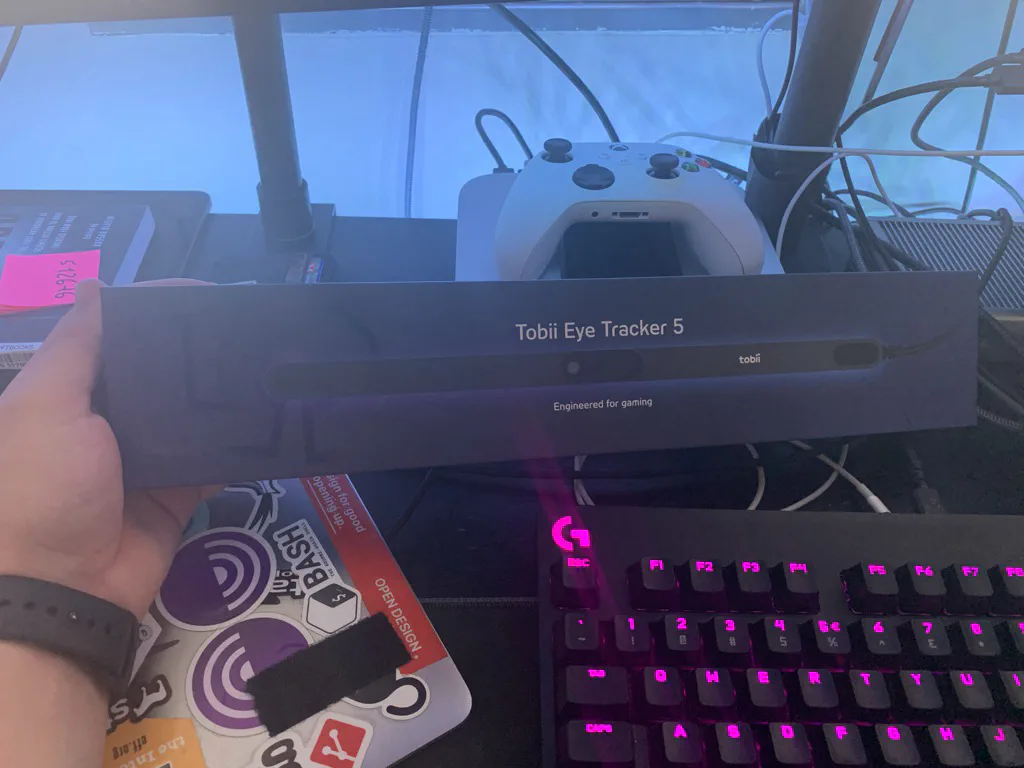
The good news is I could fix both. To look around the cockpit more naturally, I got a Tobii Eye Tracker 5, which lets me turn my head left and right to pan the camera. A huge improvement, and super cool! For the cruise speed and autopilot, the answer was to move on to the Cessna 172. It has an autopilot and cruises faster, and I already have 130 hours in the 152, so that’s the next step!
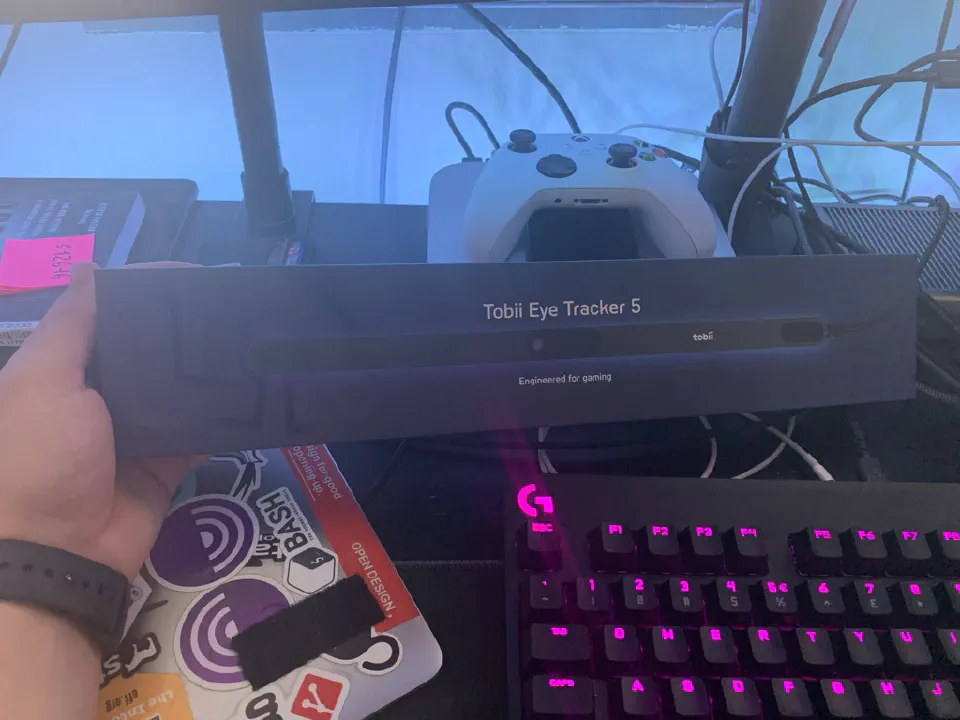
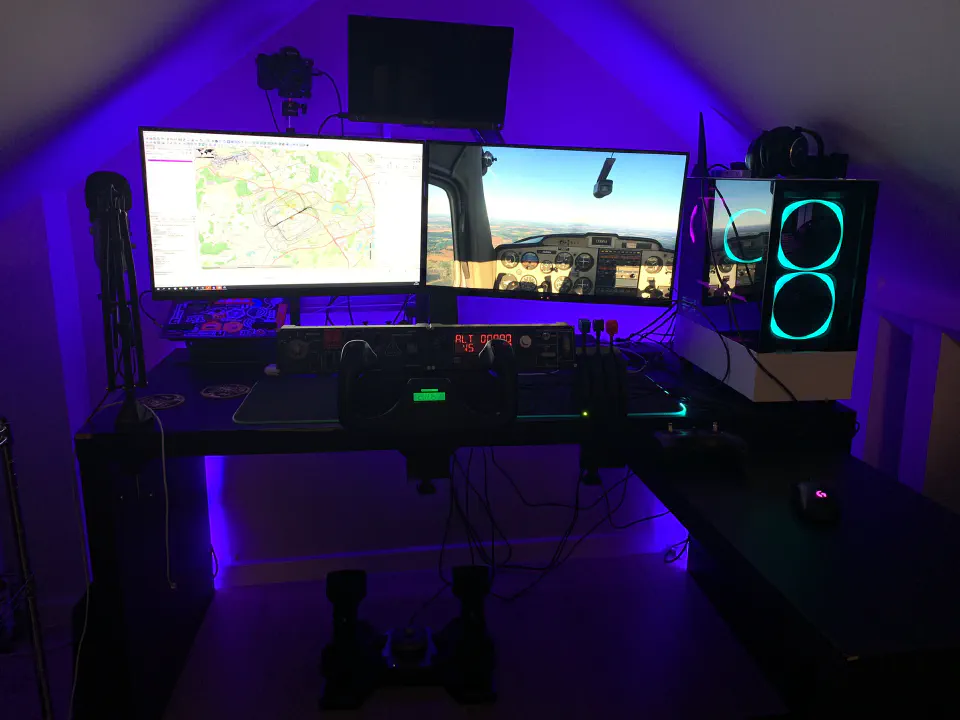
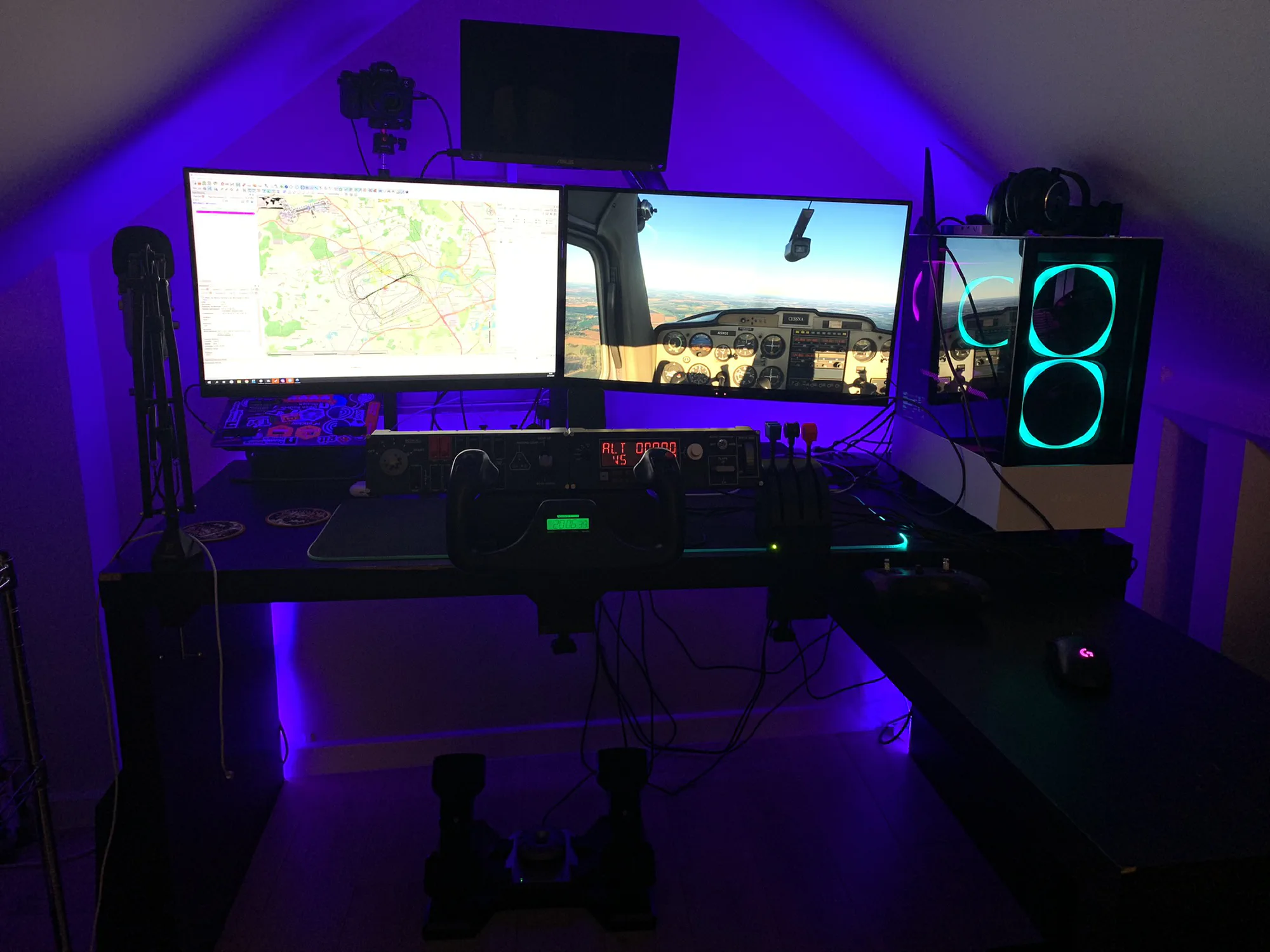
A word of warning about the Tobii Eye Tracker 5: it only works on one display, which is a shame, since I was running the simulator across two. So now the simulator is on one display, and the other one shows the map, in Little Navmap. The tracker sticks to the bottom of the display and has a good range, which helps, since I sit quite far back.
Next Steps
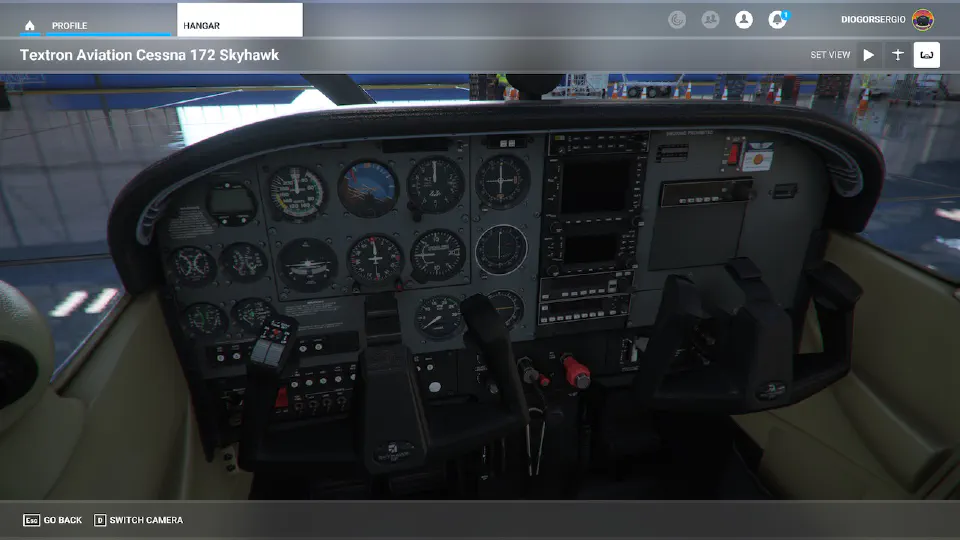
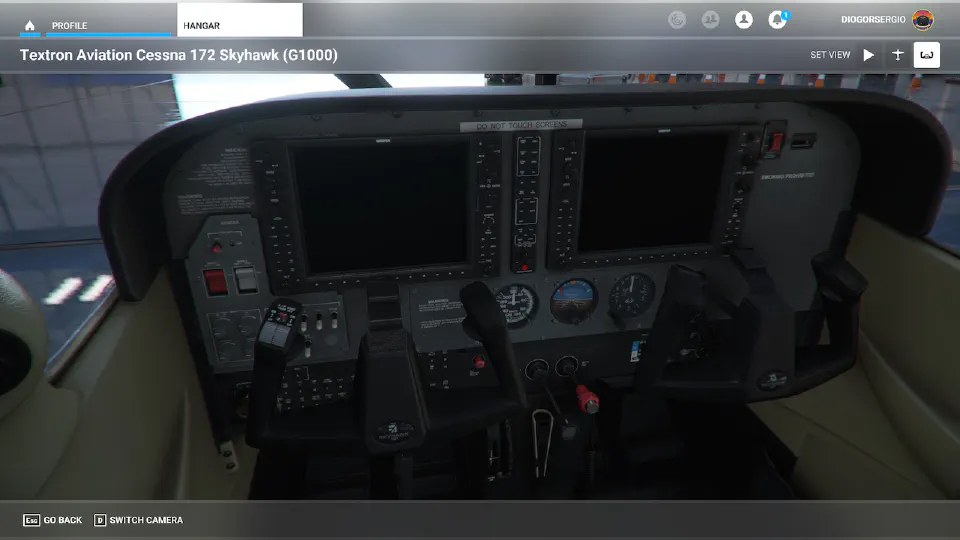
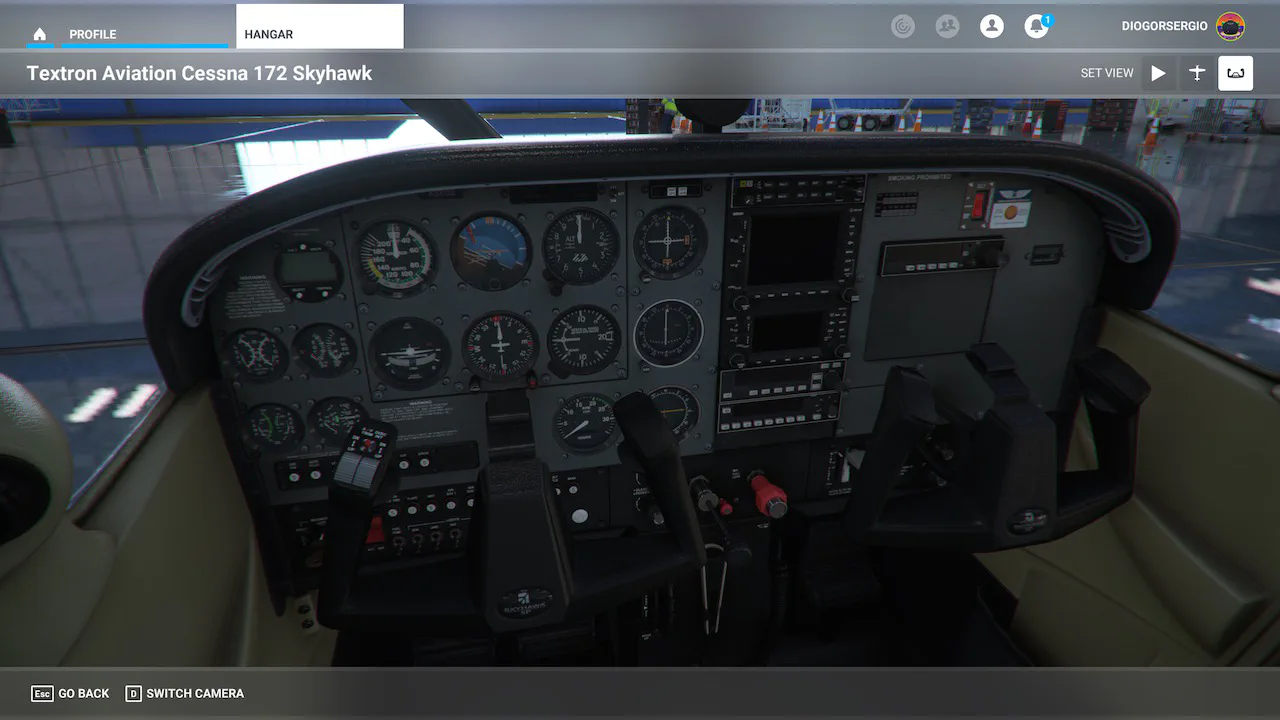
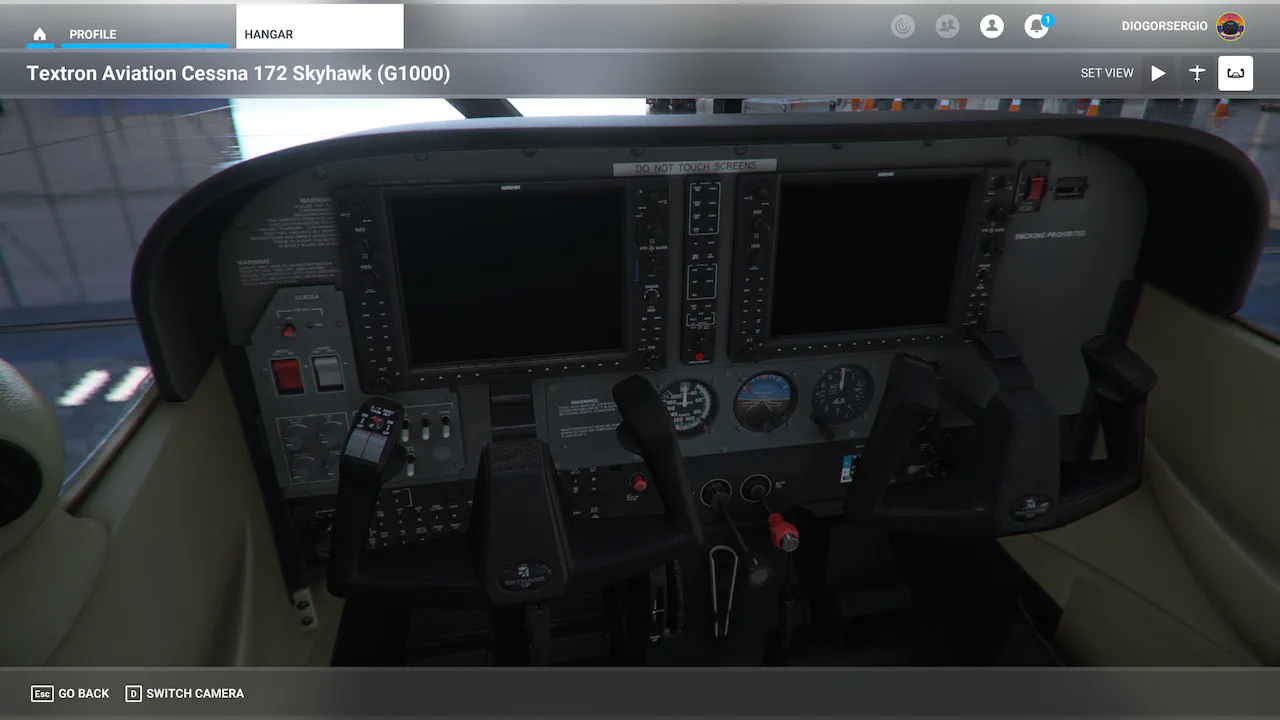
I’m now starting out with the Cessna 172. So far it’s pretty similar to the 152: the checklists and the speeds for each procedure are a bit different, but it’s been easy to pick up. MSFS 2020 only comes with the G1000 version, which was a bit too technical for me at this point, so I got the Deluxe edition, which includes the 172 with regular instruments.
Cessna 172 - Regular Avionics (Deluxe Package)
Cessna 172 - G1000 (Default Model)
That’s it for now – my journey with Flight Simulator so far!